

VMCature Two-Way Video Tutoring and Learning System (Software)
VIEWMED
VMCature Two-Way Video Tutoring and Learning System (Software)
$0.00
VMCapture Two-Way Video Tutoring and Learning System (Software)
Overview
VMCapture is an application system designed for classroom instruction, training, multiparty video conferencing, and remote demonstrations. The instructor terminal enables class launch and on-site control; the trainee terminal supports video viewing, audio listening, and interactive participation, with built-in screenshot and recording functions for content archiving.
The system delivers ultra-high-definition video (4K input at 3840×2160, 30 fps; two-way interactive video at 1920×1080, 20 fps; remote viewing at 1920×1080, 15 fps) with ultra-low latency (<50 ms).
1. Application Scenarios
● Classroom & Institutional Teaching: Paired with video capture devices, the system builds a two-way interactive video teaching environment featuring ultra-low latency over LAN and comprehensive interactive capabilities.
● Remote Training: Instructors share their desktops for live explanations, with smooth playback on trainee terminals.
● Multiparty Video Conferencing: One-click creation of LAN-based multiparty conferences—free, no login required, and easy to operate.
● Mass External Network Viewing: Enable Mirror View mode as needed to allow remote trainees to watch sessions via external networks.
2. Core Advantages
● Easy Operation: Instructors can start a class in three simple steps: Connect → Preview → Start Teaching.
● Stable Playback: The trainee terminal automatically attempts to reconnect during network jitter or frame freezes, minimizing the need for manual reconnection.
● Smooth Interaction: Trainees can raise their hands to request speaking; instructors can quickly manage these requests via the monitoring window.
● Convenient Archiving: Integrated screenshot, recording, and playback functions support class review and assignment management.
3. Instructor Terminal – Functions & Operation Guide
3.1 Main Interface
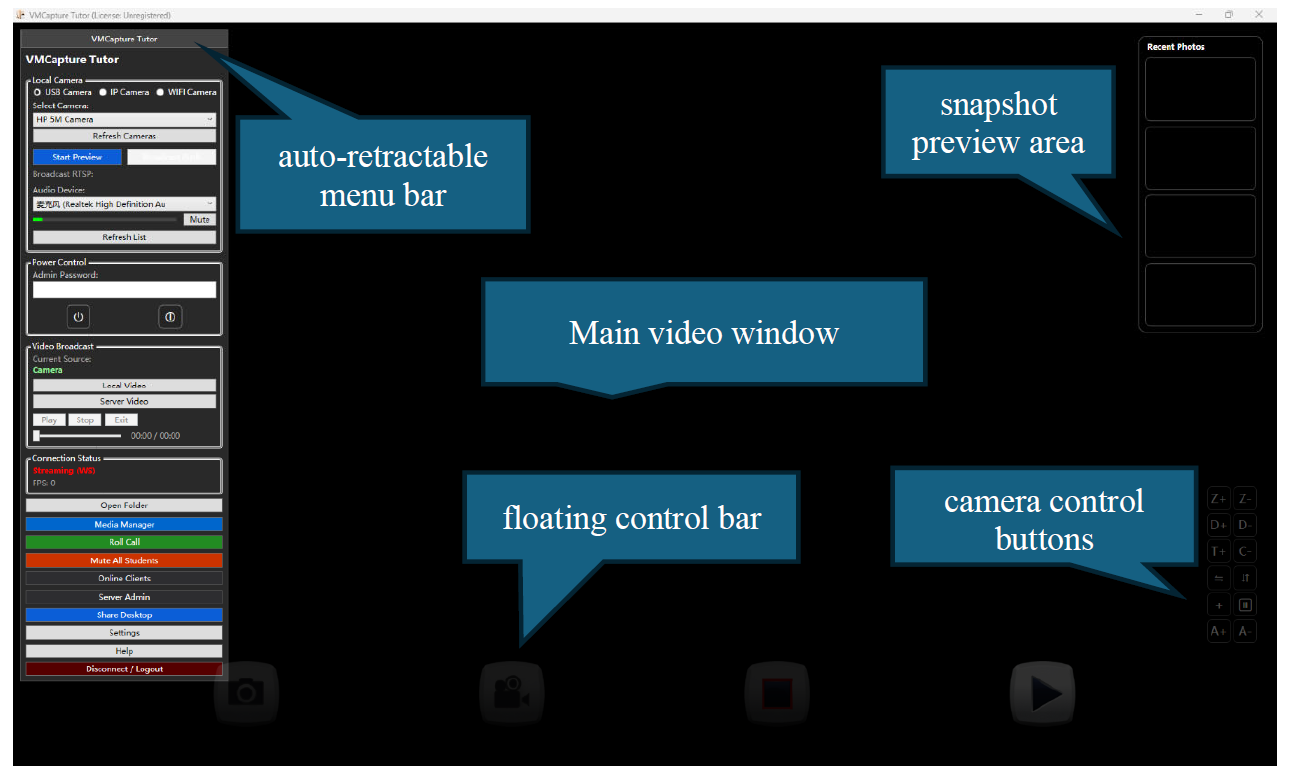
All core operations are centralized on a single interface:
● Server Connection: Enter the server address for one-click connect/disconnect.
● Video Source Selection: Choose from USB camera, IP camera, or desktop sharing.
● Start/Stop Teaching: Once started, trainees can view video and receive audio.
● Microphone & Conference Control: Microphone selection, mute/unmute, and speaking permission management.
● Recording & Resource Management: Session archiving, playback, and material storage.
3.2 One-Click Class Launch (Standard Workflow)
1. Connect to the server.
2. Select a video source and verify normal preview.
3. Click Start Teaching.
4. After stopping teaching, trainee terminals automatically return to standby mode, eliminating residual audio playback after exit.
3.3 Multi-Compatible Video Sources
● USB Camera: For instructor live broadcast and blackboard explanation.
● IP Camera: Fixed-angle capture for full classroom panoramic views.
● Desktop Sharing: For PPT presentations, programming tutorials, and software demonstrations.
3.4 Trainee Monitoring
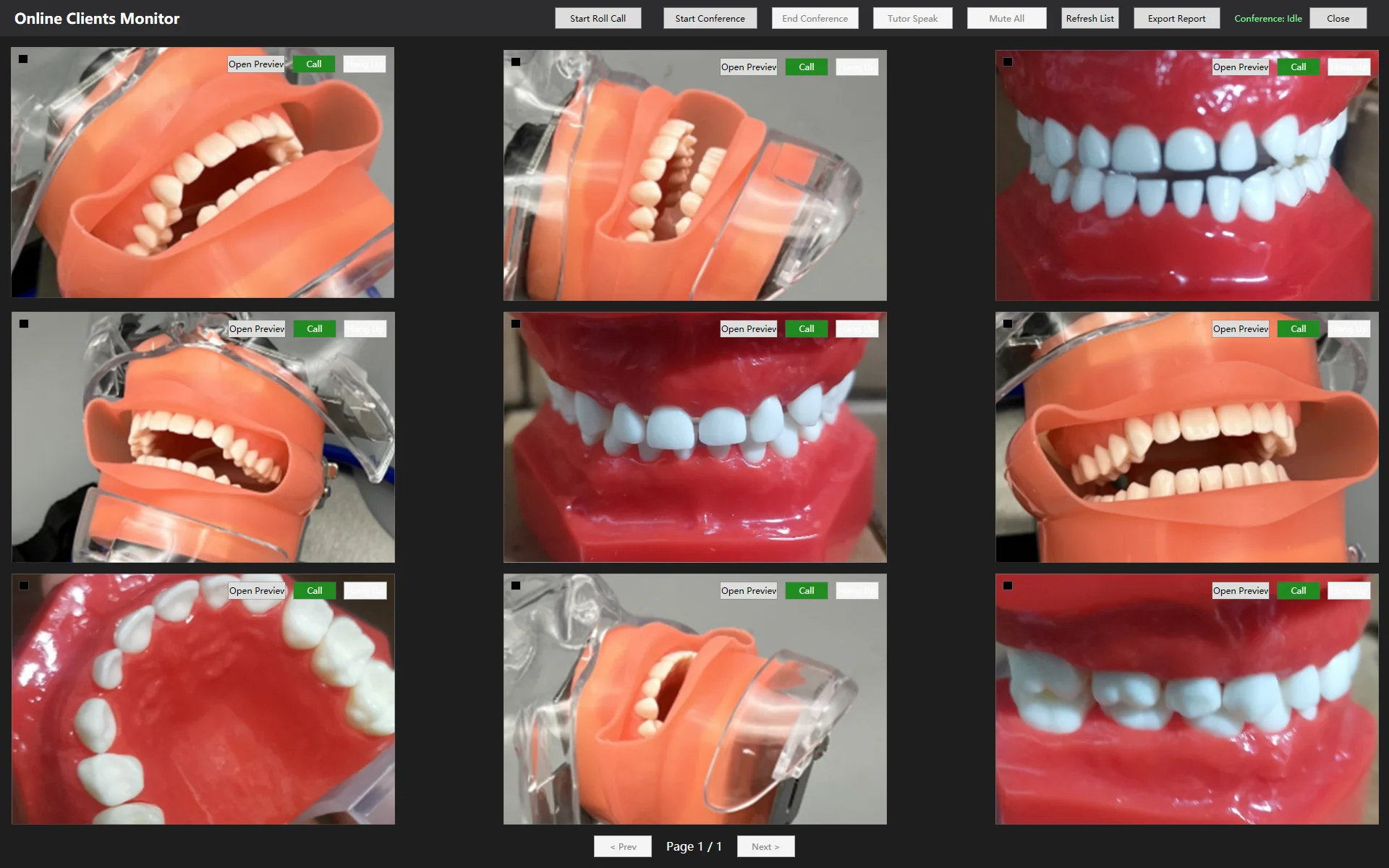
Instructors can open the trainee monitoring window to manage classroom order and interactions:
● View online trainee list and real-time status.
● Monitor hand-raising and speaking request queues.
● Instantly approve/reject speaking requests or terminate ongoing speeches.
3.5 Whiteboard Function
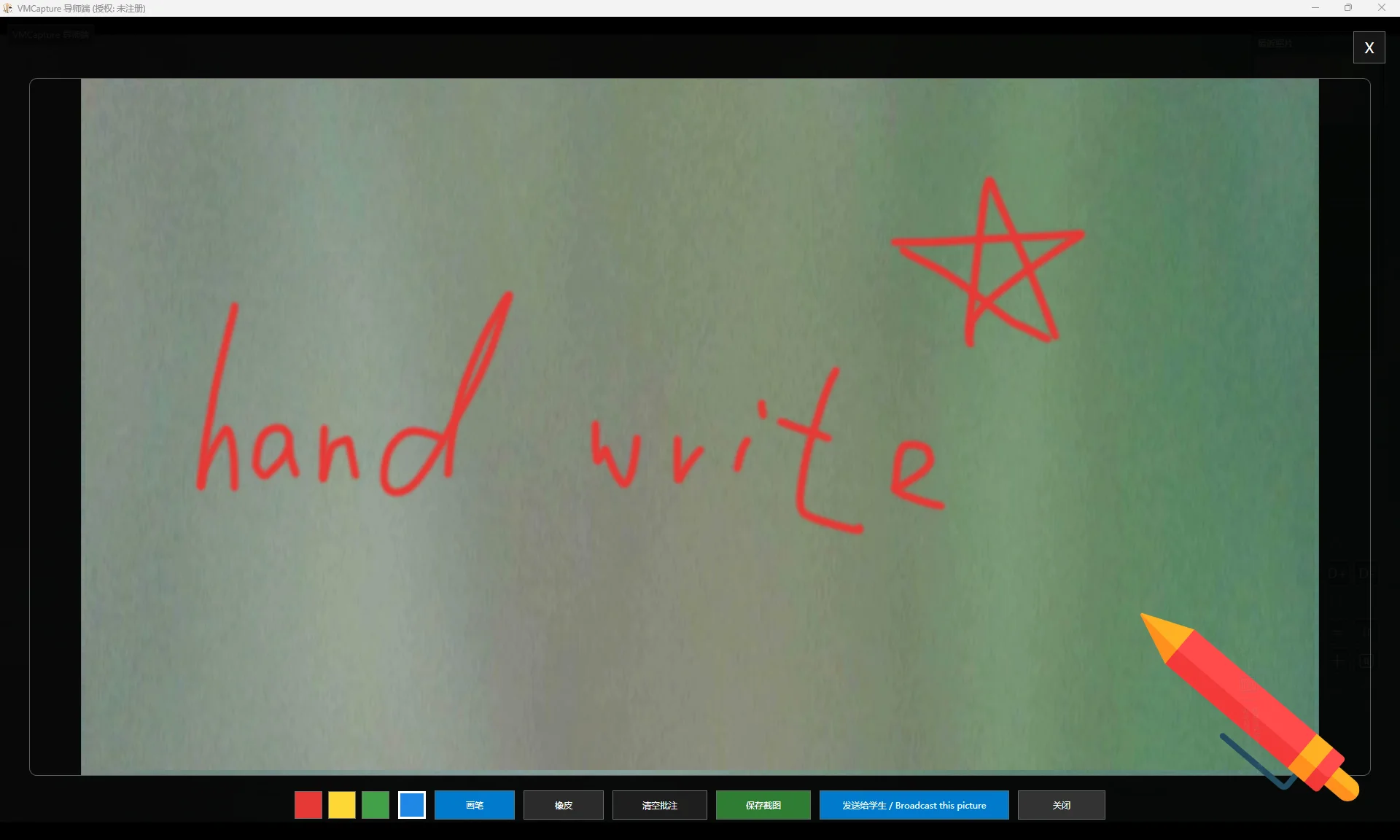
● Instructors can capture snapshots and activate the whiteboard tool.
● Annotate captured images with freehand drawing.
● Save annotated notes via screenshot.
● Push whiteboard content to all online trainees in real time.
3.6 Multiparty Video Conference
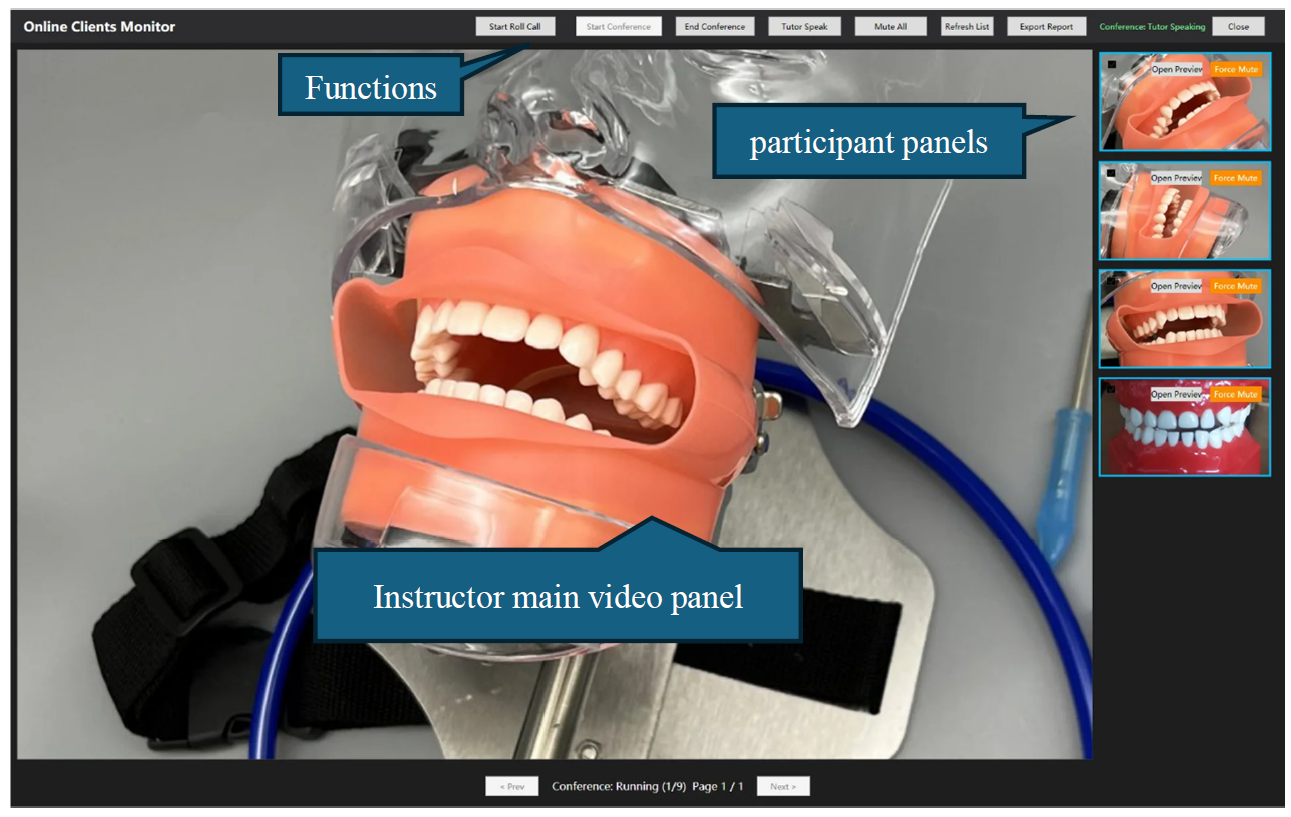
● Instructors can select any trainees to join the conference.
● All participants view the instructor’s main video after the conference starts.
● Multiparty real-time voice interaction is supported.
● Instructors have full mute and individual mute permissions.
● Instructors may add or remove participants at any time during the session.
4. Trainee Terminal – Functions & Operation Guide
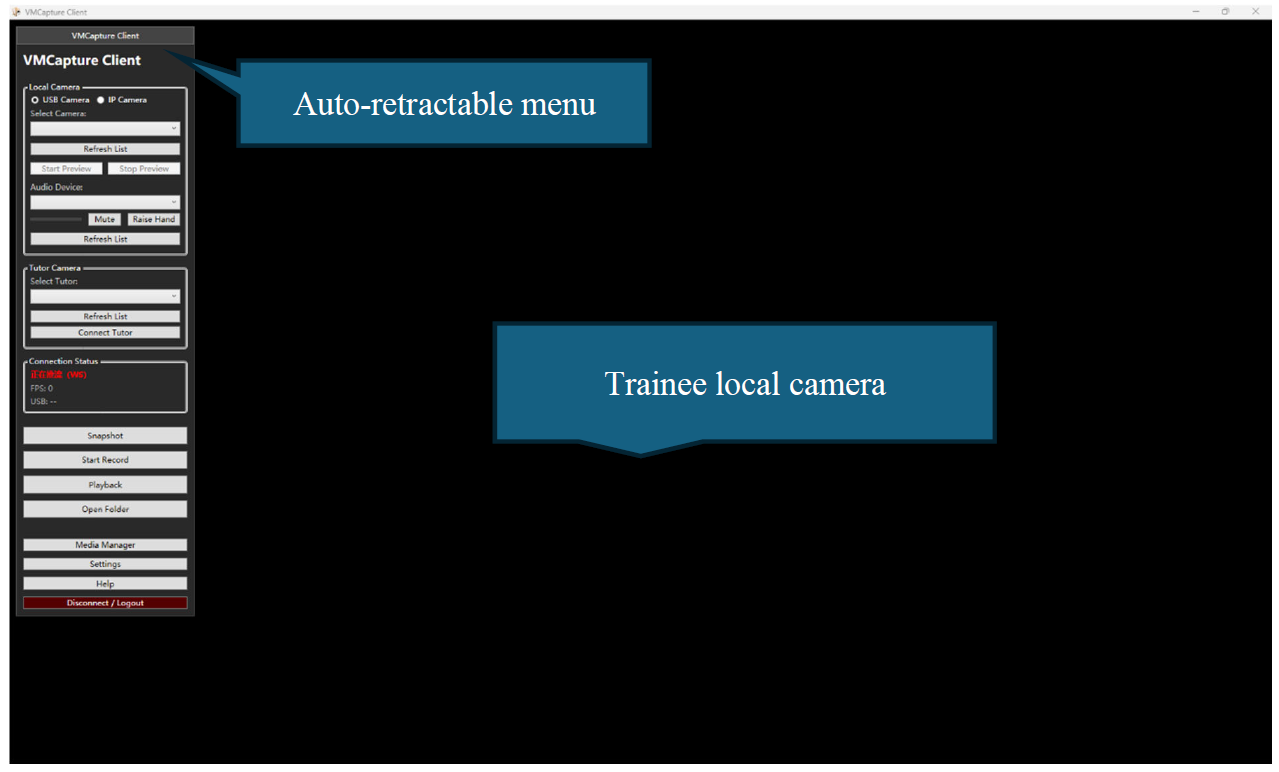
4.1 Main Interface
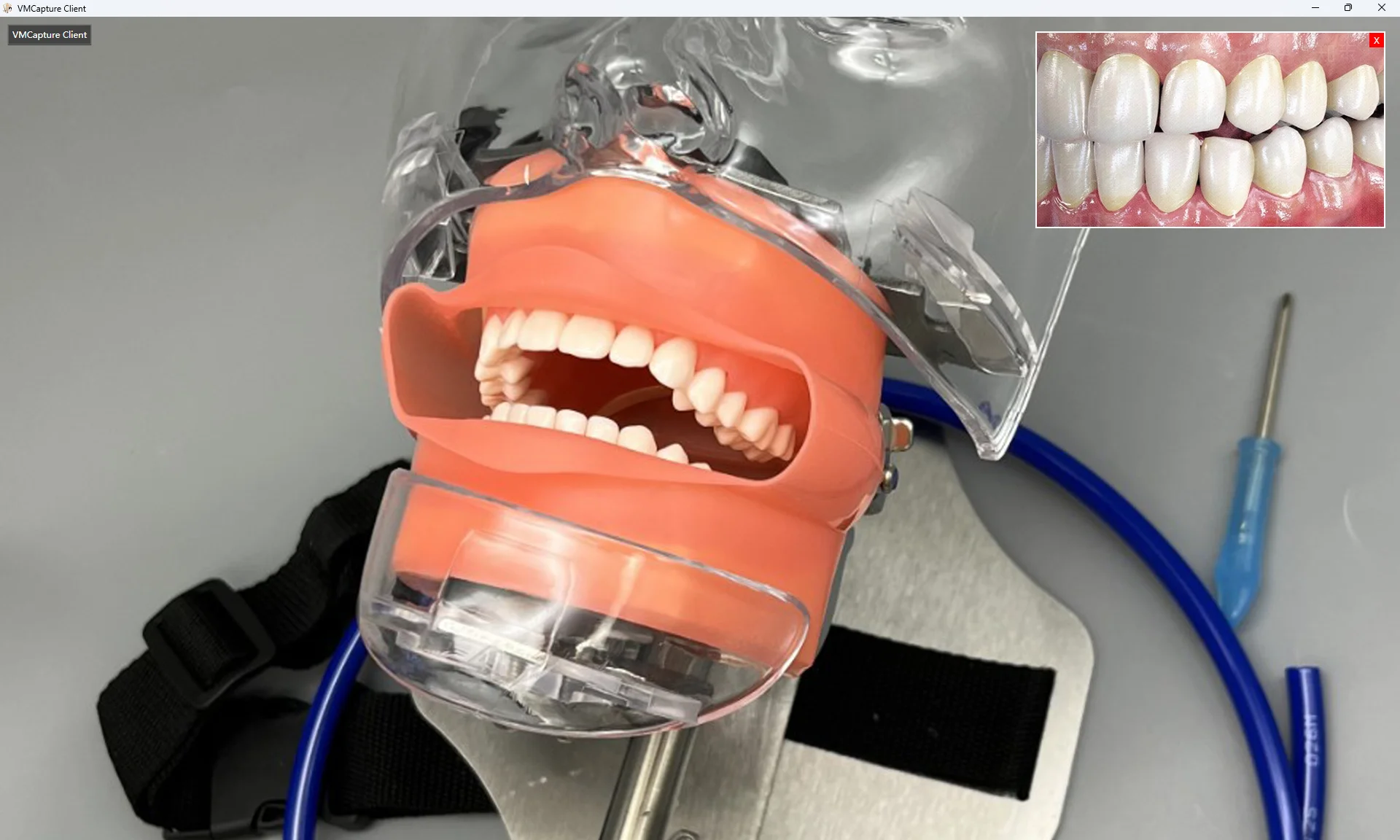
The trainee terminal prioritizes video viewing with auxiliary interactive functions:
● One-Click Connection: Enter the server address to establish a link.
● Dual Video View: Main instructor video + thumbnail local camera window (double-click to swap positions).
● Synchronized Audio: Automatically syncs audio with classroom status.
● Interaction Tools: Raise hand, request to speak, and check conference status.
● Screenshot & Recording: Local storage of learning materials for post-class review.
4.2 Synchronized Classroom Playback
After successful connection, the trainee terminal automatically follows the instructor’s live status:
● When the instructor starts teaching, trainees instantly receive synchronized video and audio streams.
● When the instructor switches display modes (teaching mode / conference mode), the terminal automatically restores playback without requiring manual reconnection.
4.3 Interaction – Hand-Raising & Microphone Access
● Raise Hand: Attract the instructor’s attention or submit a speaking request.
● Conference Microphone Access: Real-time status display (active call, muted, etc.) upon joining a conference.
4.4 Viewing Auxiliary Tools
Built-in viewing tools accessible via interface buttons:
● Zoom In/Out: Enlarge details for clear observation.
● Flip Image: Adapt to cameras with reversed orientation.
● Freeze Frame: Pause on a single frame for focused explanation.
● Annotation Assistant: Highlight key areas of the video frame.
4.5 Automatic Stability Recovery
The trainee terminal integrates automatic recovery logic to resolve two common playback issues:
● Temporary network disconnection due to jitter: Automatic reconnection attempts.
● Frozen video frame while connection remains intact: Automated frame refresh and stream recovery.
5. Two Common Deployment Modes
5.1 Local Area Network Teaching
● Instructor and trainee terminals connect to the same LAN server.
● Ultra-low latency transmission and full interactive experience (smoother hand-raising, conferencing, and speaking functions).
5.2 External Network Mass Viewing
● Enable Mirror View mode to allow remote trainees to access live streams via cloud forwarding.
● Prioritizes playback stability for external network users; partial two-way interactive features may be limited (subject to actual configuration and software version).
Version: 2.5
Issue date: 15th June 2026
- Model: VMCapture2.5
-
Brand:

